The Starter plan is free. A card on file, nothing charged.
Scroll
What it is
The tools you need. Not the price tag you don't.
Every feature you would pay the big names for: the booking page, the calendar, payments, the team, texts and the iPhone app, at a fraction of the price. Plus scheduling optimization the big names do not have: Precision Scheduling offers the times that fill your day without gaps. Starter is free. If a paid plan has not earned its keep in your first 30 days, you get your money back.
Precision Scheduling
Stripe
Google Calendar
Tap to Pay on iPhone
Reserve with Google
Your website
RTP BOOKINGS
Smarter scheduling
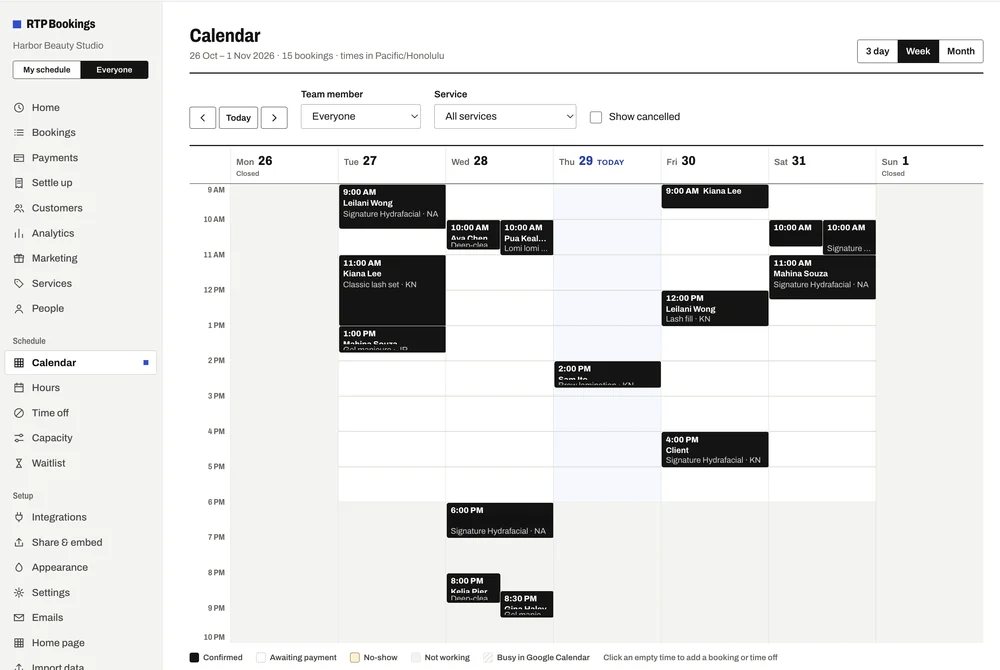
A calendar that works as hard as you do.
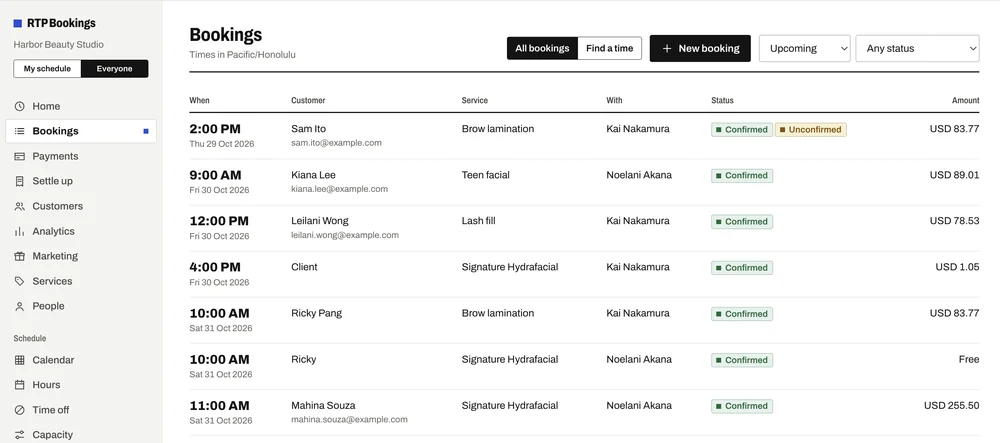
Fewer scheduling headaches: the page only offers times that are really free, and the rules you set do the rest. Every row is a real screen further down.
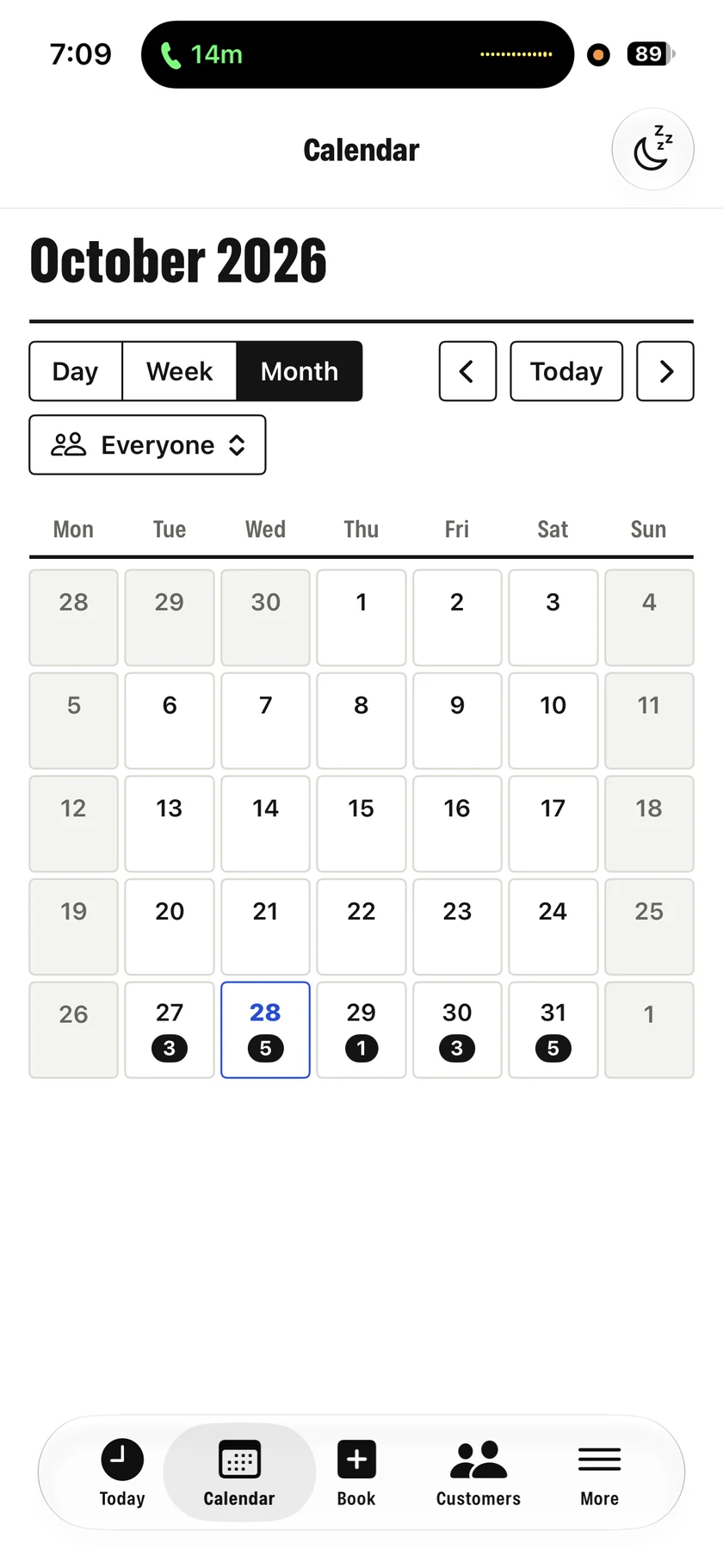
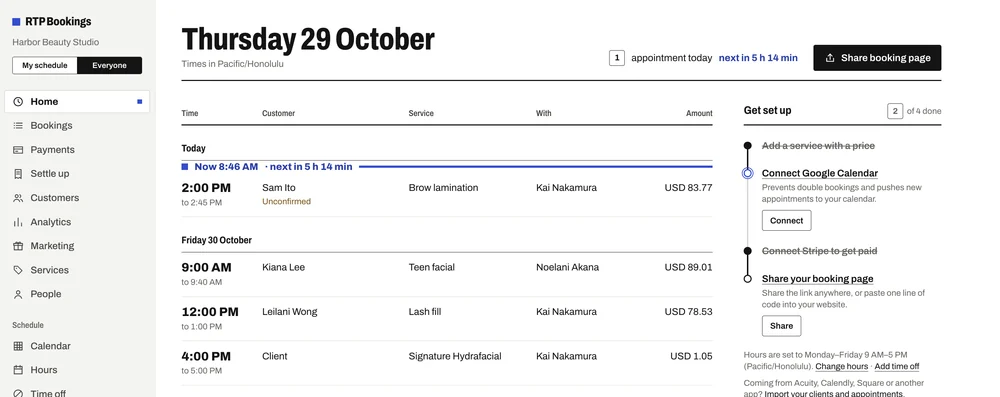
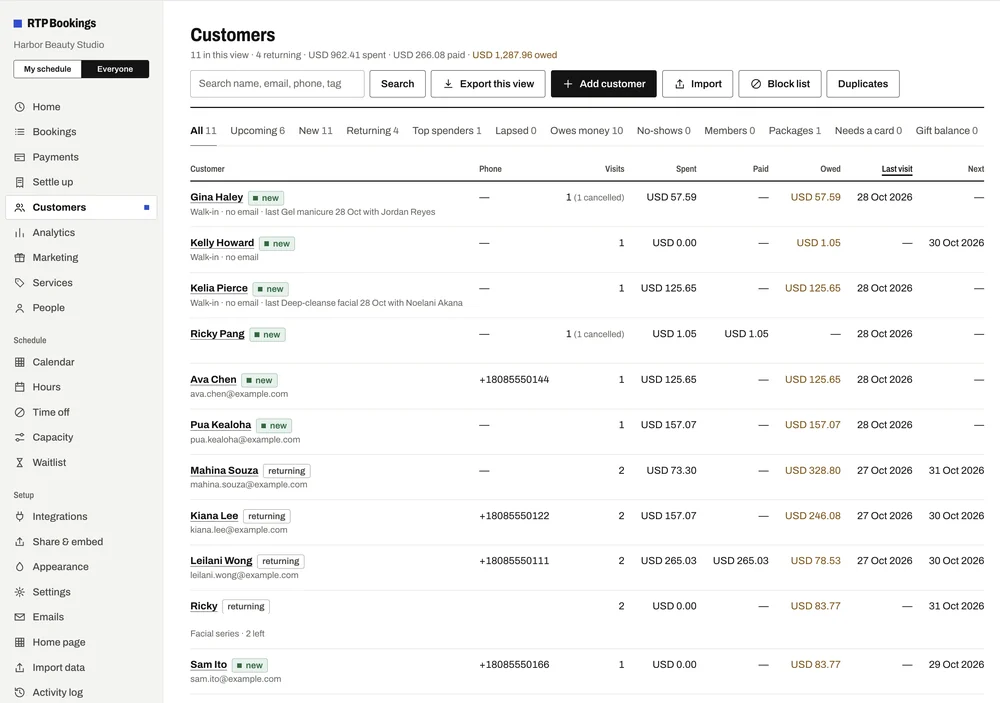
Today's bookings, the week's calendar, every customer and how the month is going, in one dashboard for the whole team.
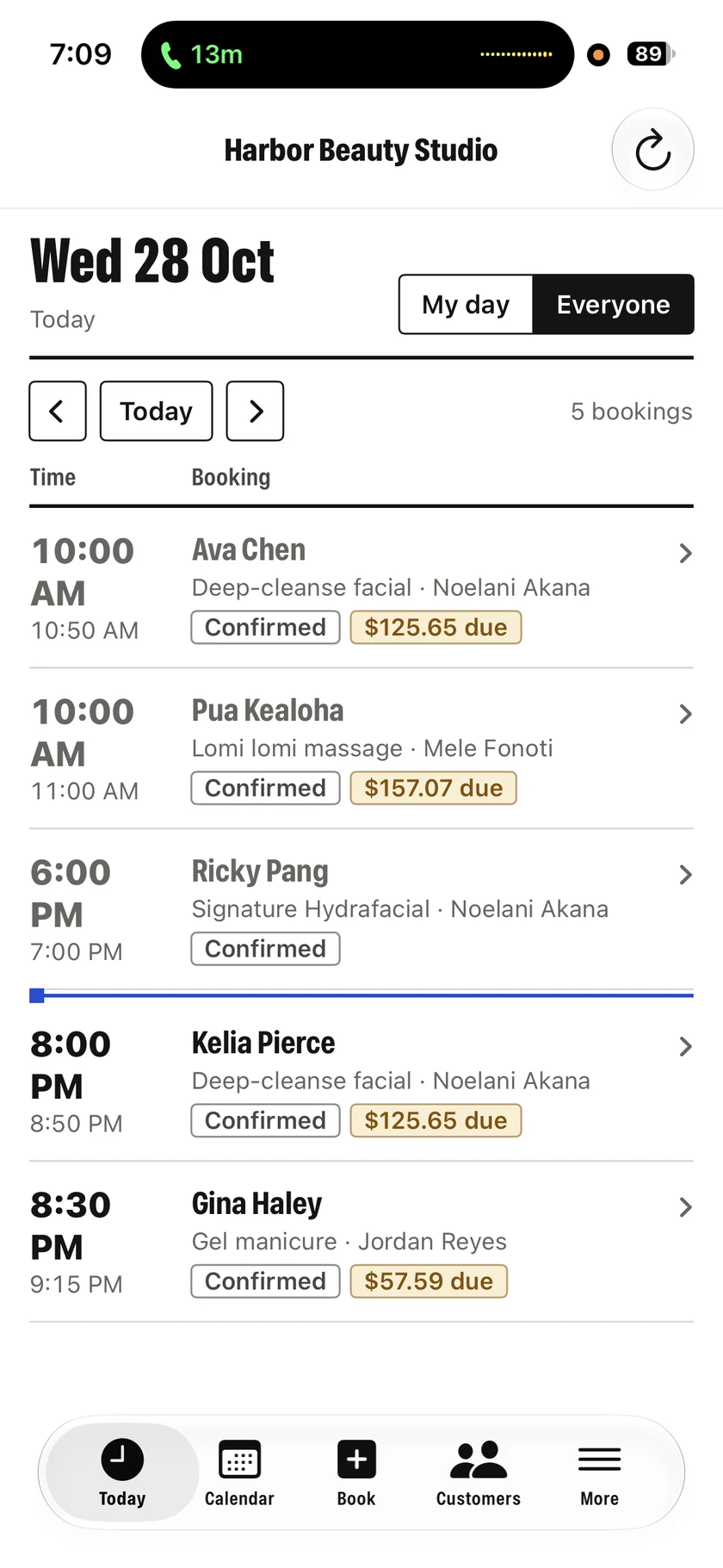
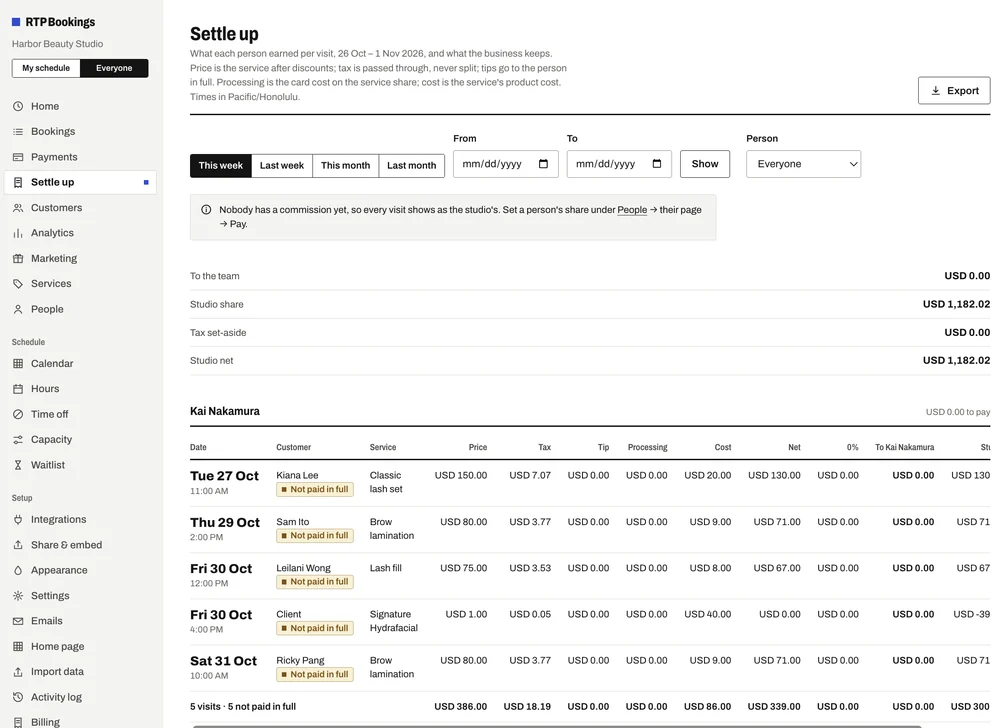
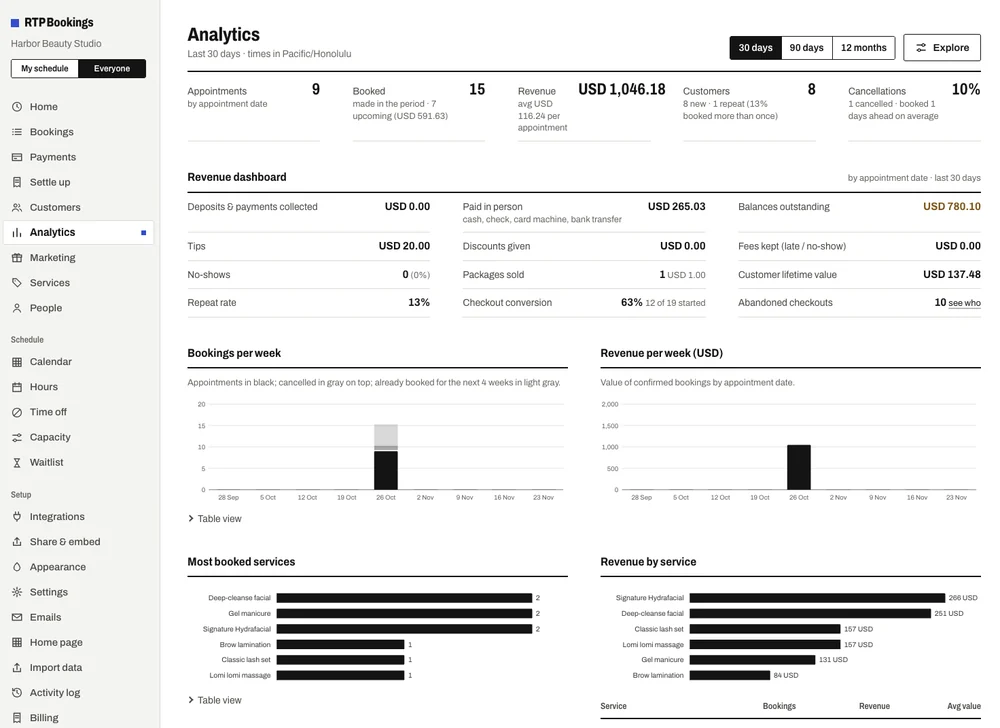
Screens from the Harbor Beauty Studio demo business. Figures are sample data.
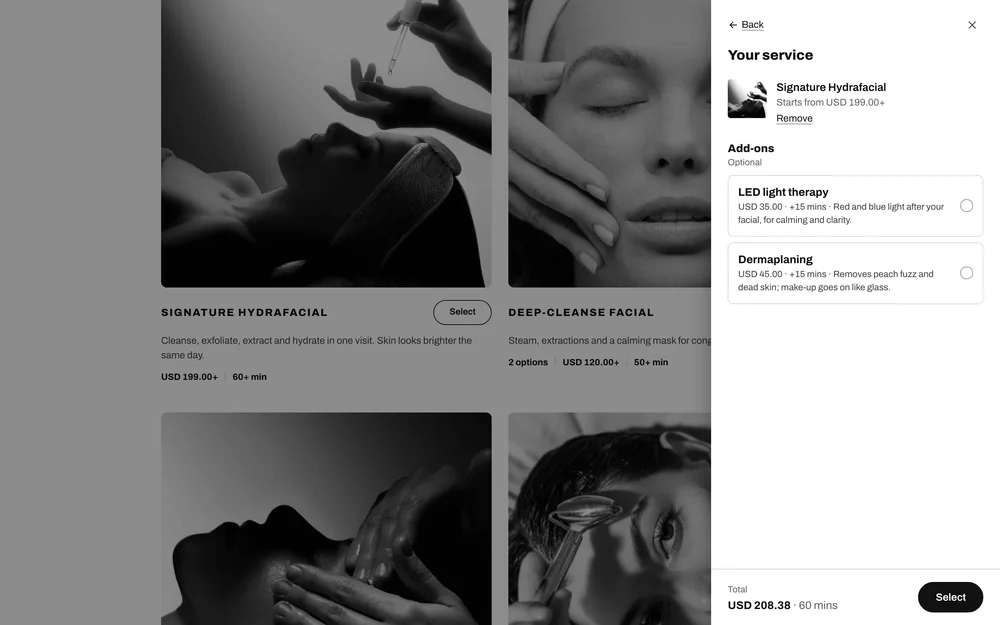
Add a service.
A name, a length and a price are all it needs to go live. Scheduling, payment and cancellation rules fold away until you want them.
See what's working.
Bookings, revenue, fees and tips, split by service, team member, source or weekday.
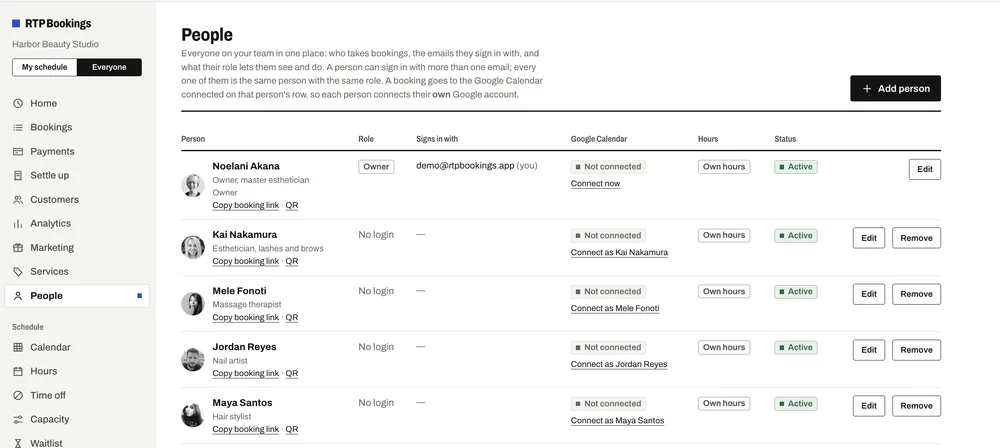
Run the team.
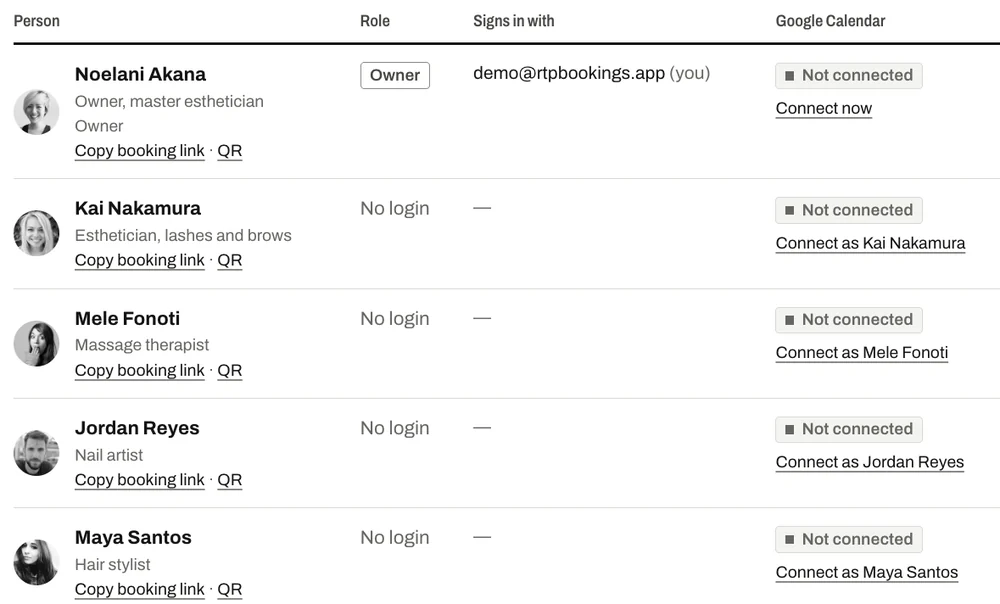
Each person gets a role, their own hours, booking link and Google Calendar.
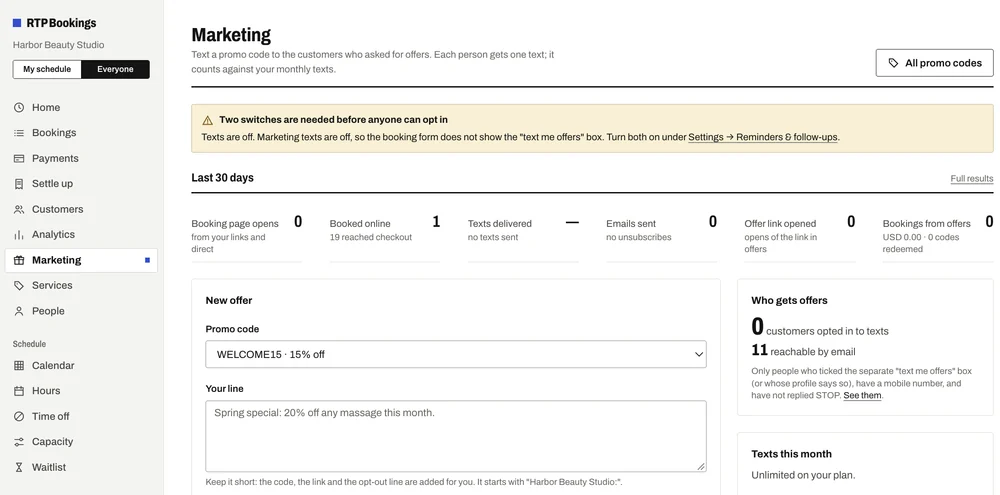
Bring them back.
Text or email a promo code to customers who opted in. You see the exact message and who gets it first.
Settle up.
What each person earned per visit and what the business keeps. Tax passed through, tips in full.
Your brand. Your booking experience.
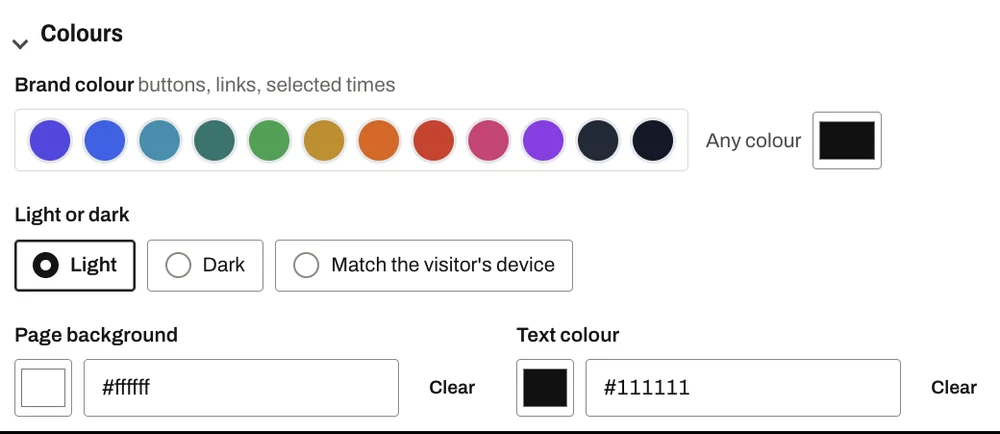
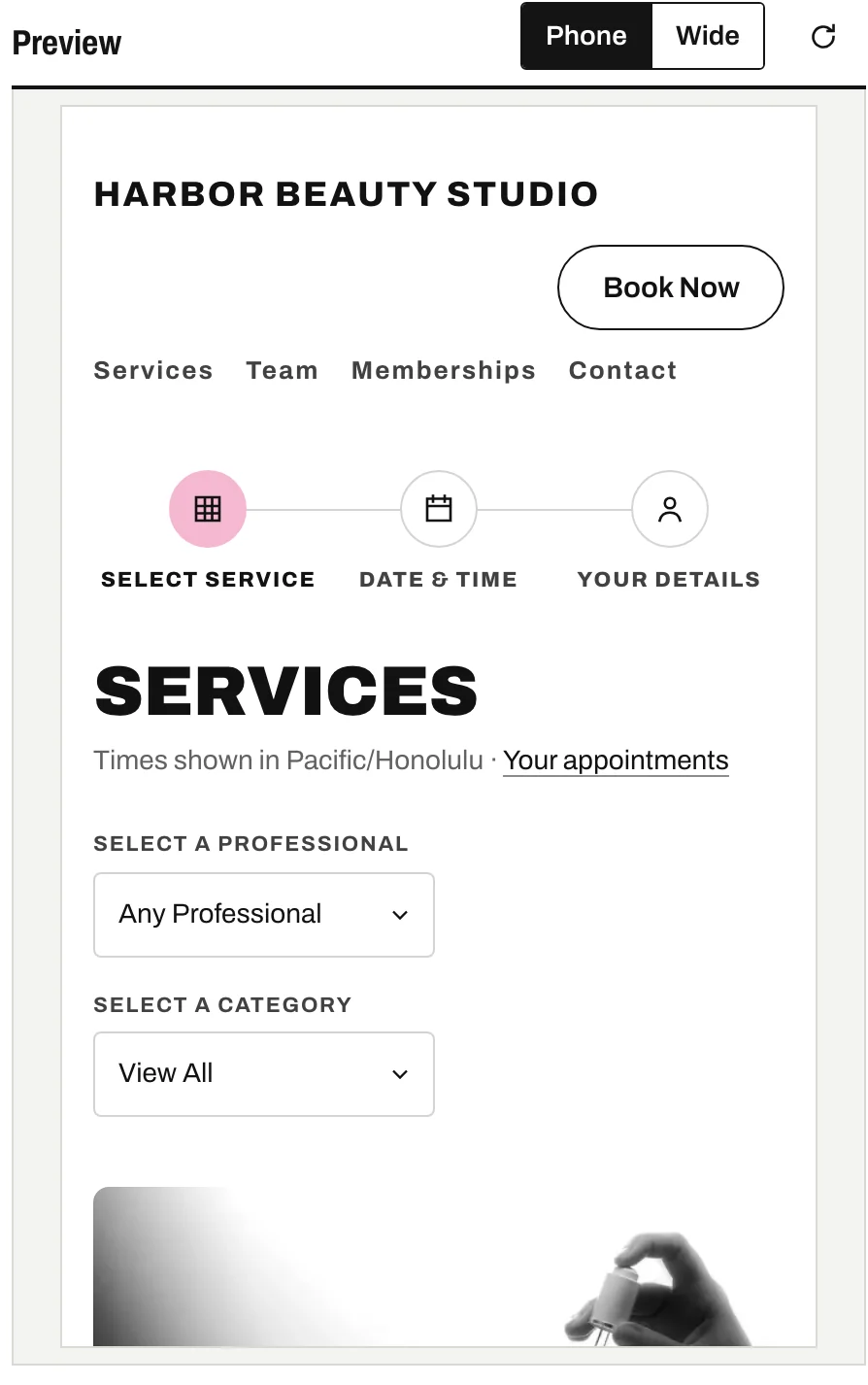
Pick the colours, the fonts and the words in Appearance and watch your real booking page update beside them. Nothing changes for customers until you press Save.
Colours. A brand colour for buttons, links and the chosen time; a highlight for the step you are on; light or dark.
Type and shape. Font pairs, corner radius, card style and page width.
Words. Your headline, your service descriptions, your confirmation text.
Highlight · #db2777
harbor · booking page · preview
The editor previews the page at phone width too.
Each frame is the real page with a different highlight colour, exactly as the editor's preview shows it.
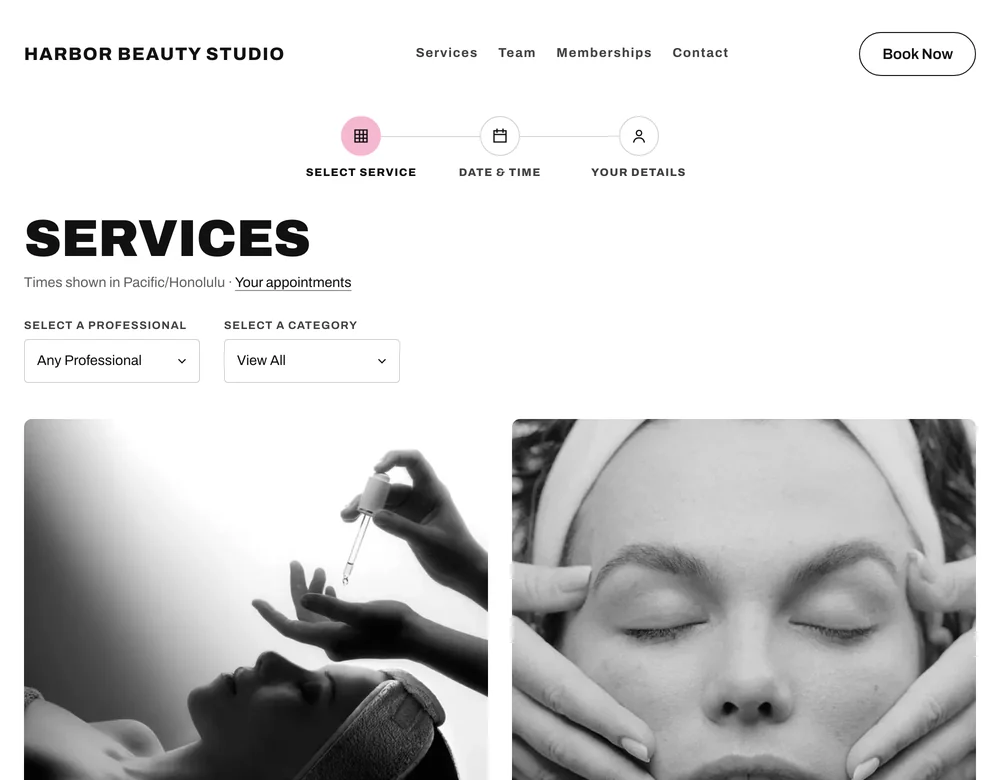
A beautiful booking experience for every client.
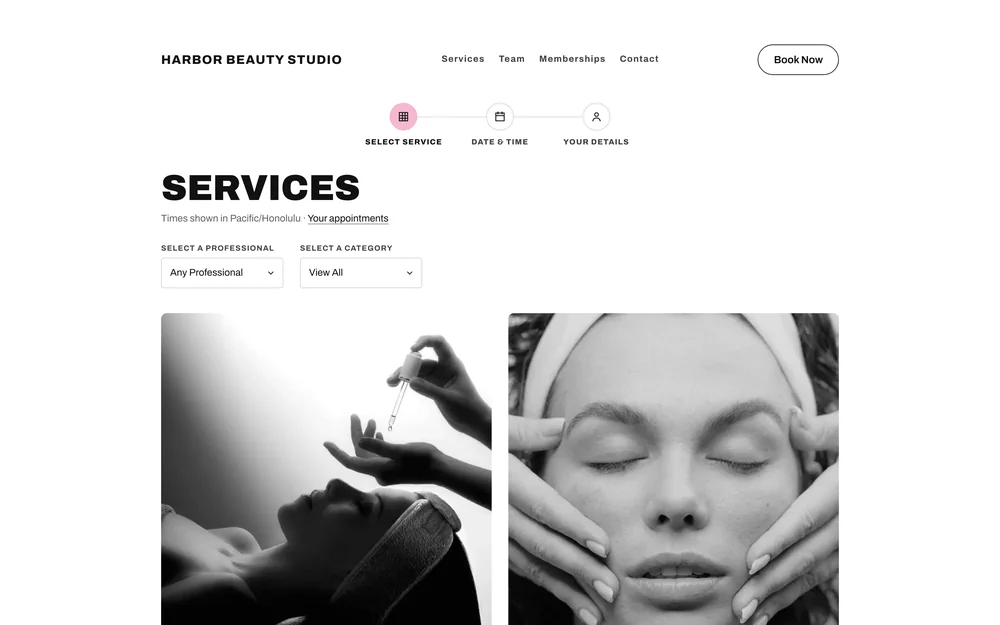
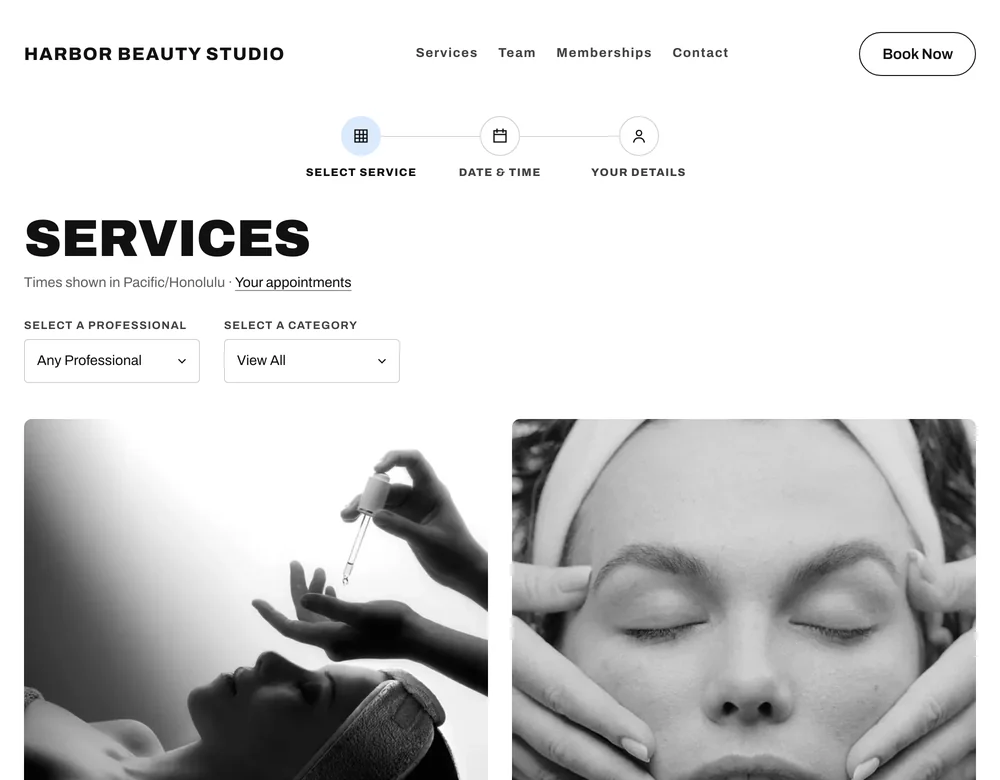
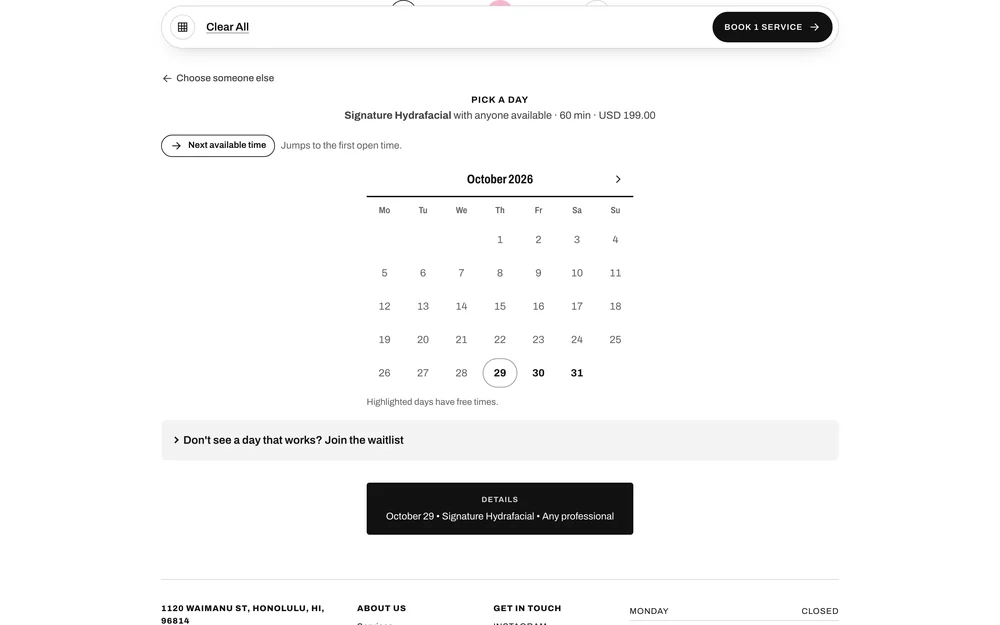
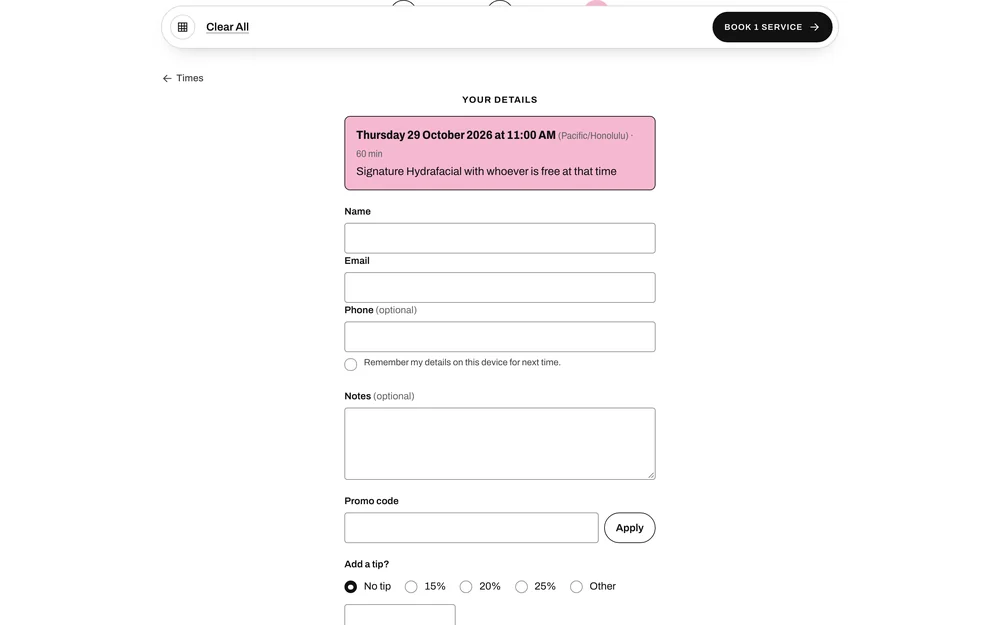
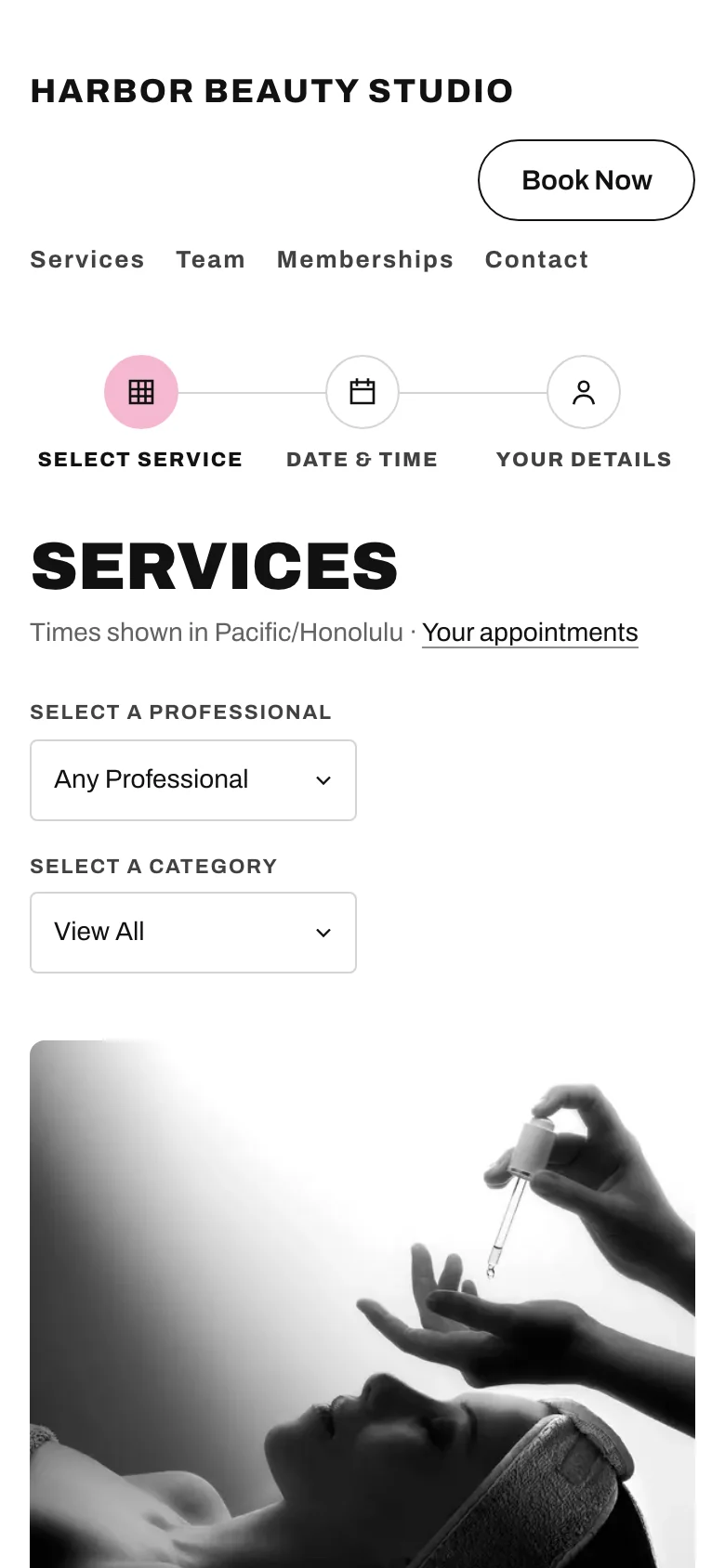
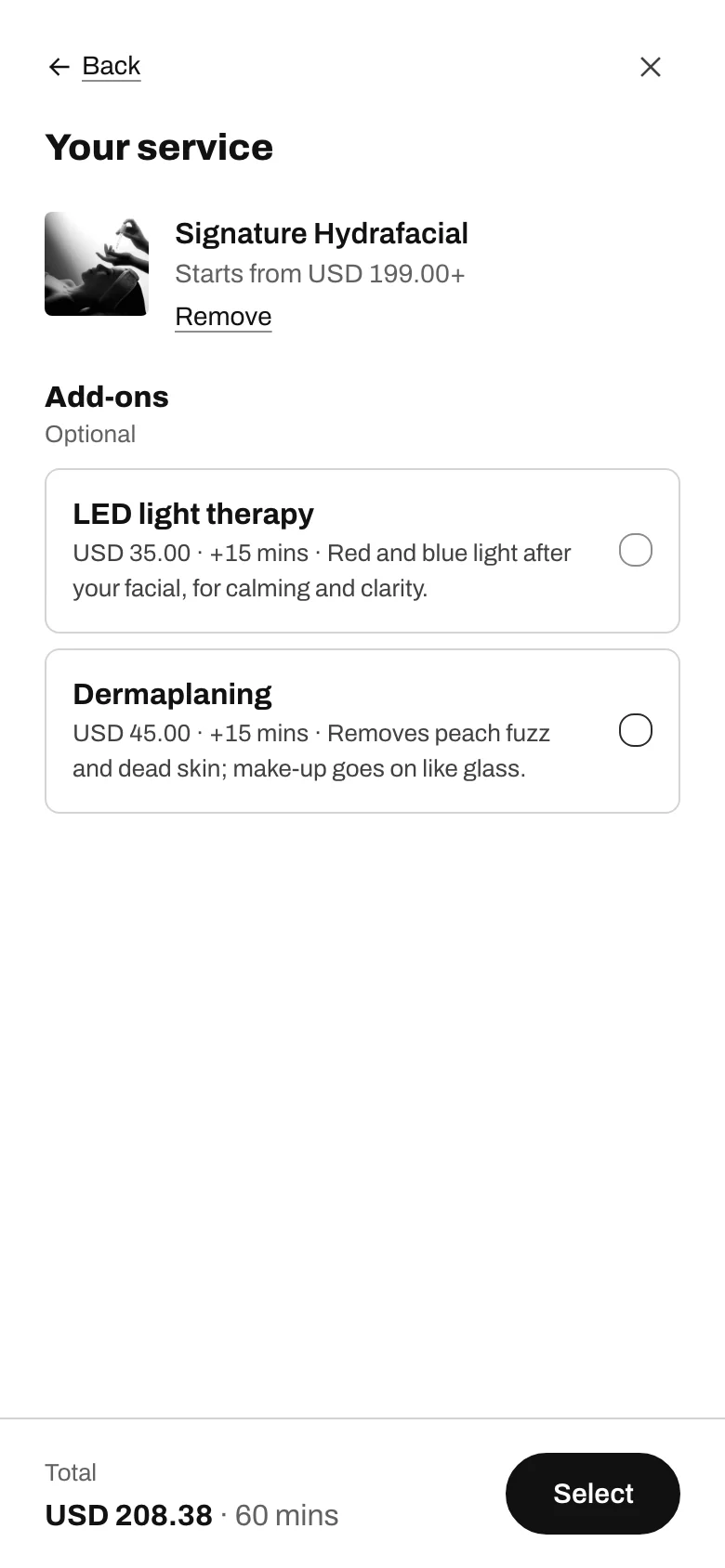
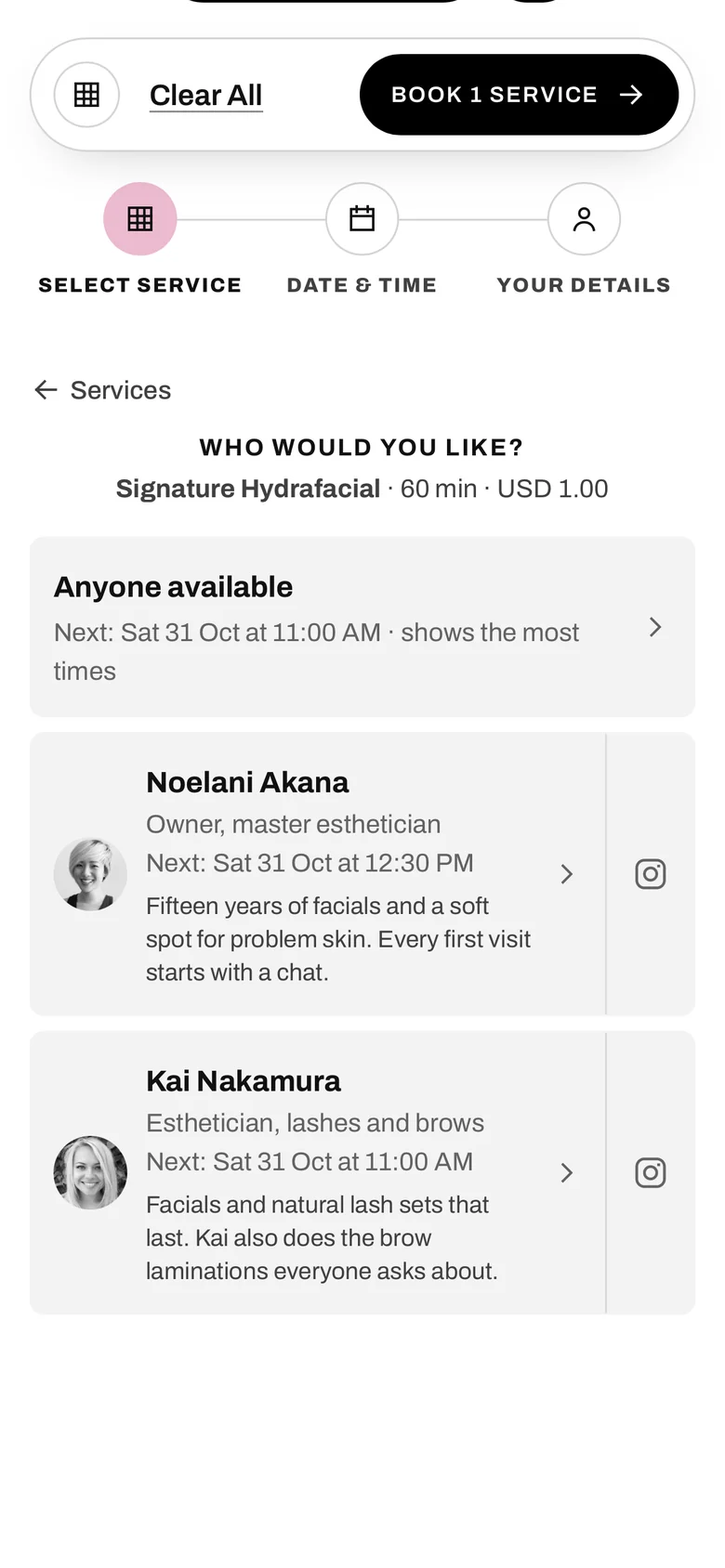
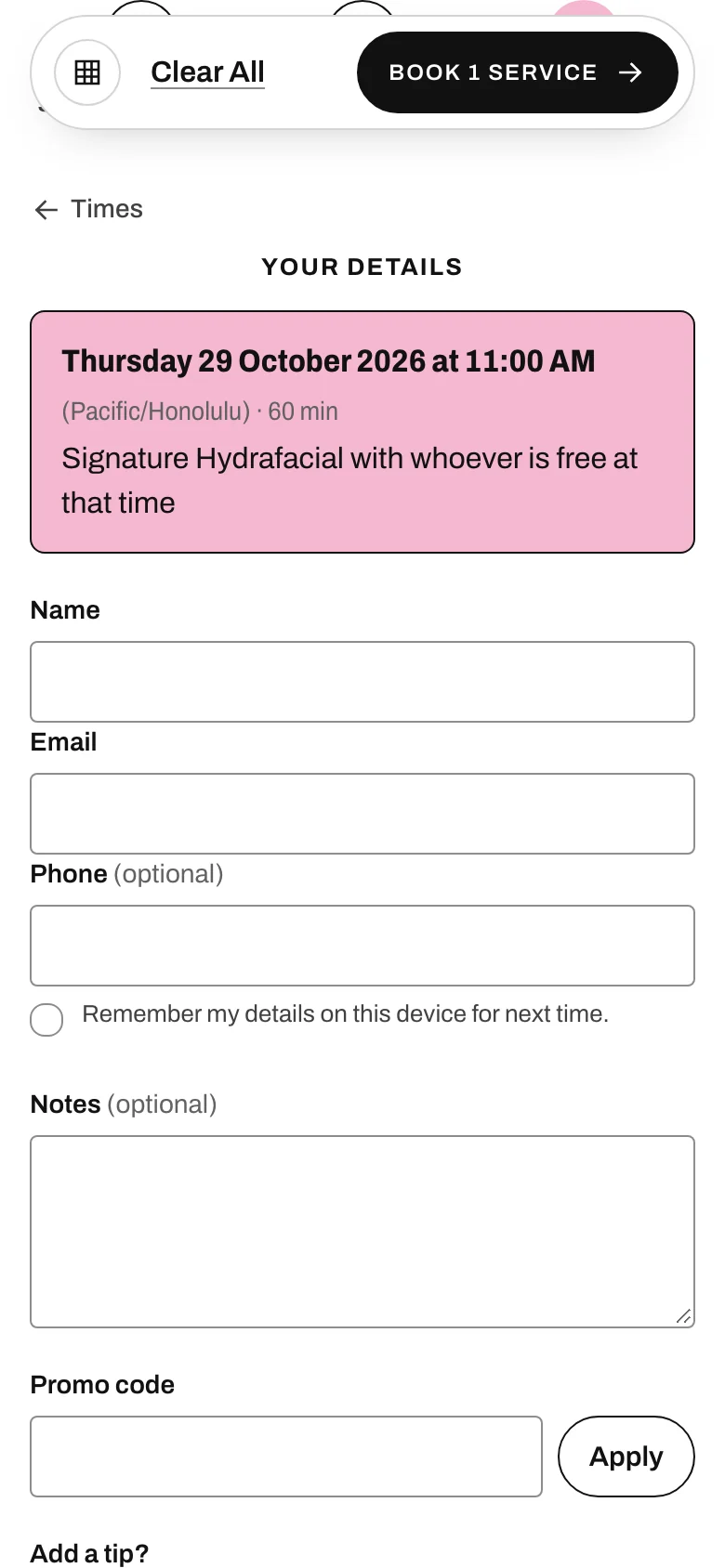
Service, add-ons, who, the optimal times first, then any day and time, details. No account to create, and only times that are really free are offered. The page ends at payment, taken by Stripe.
1
Choose a service
Photo cards with the price and length, filtered by professional or category.
2
Add an extra
Optional add-ons with their own price and minutes; the total updates as they tick.
3
Pick a person, or anyone
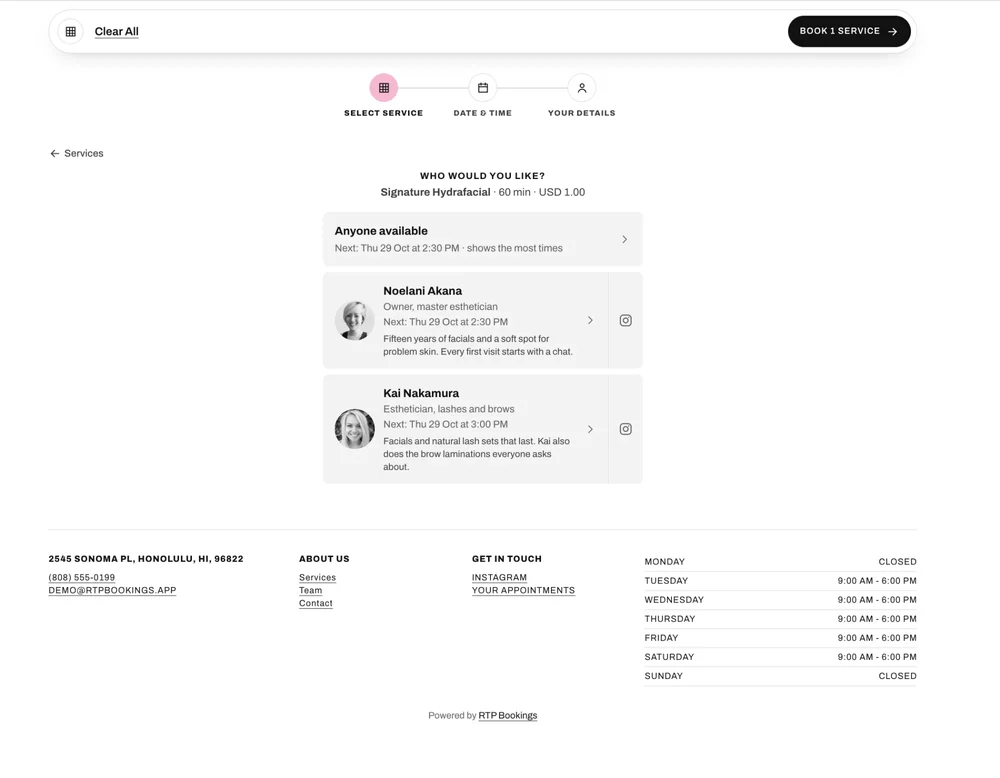
Each team member with their photo, bio and next free time. "Anyone available" shows the most times.
4
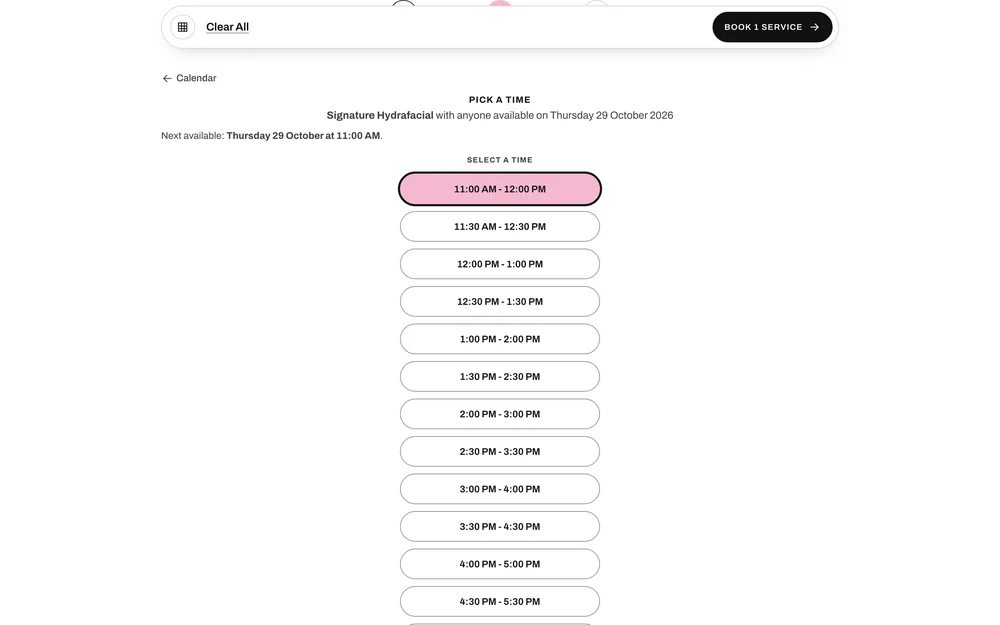
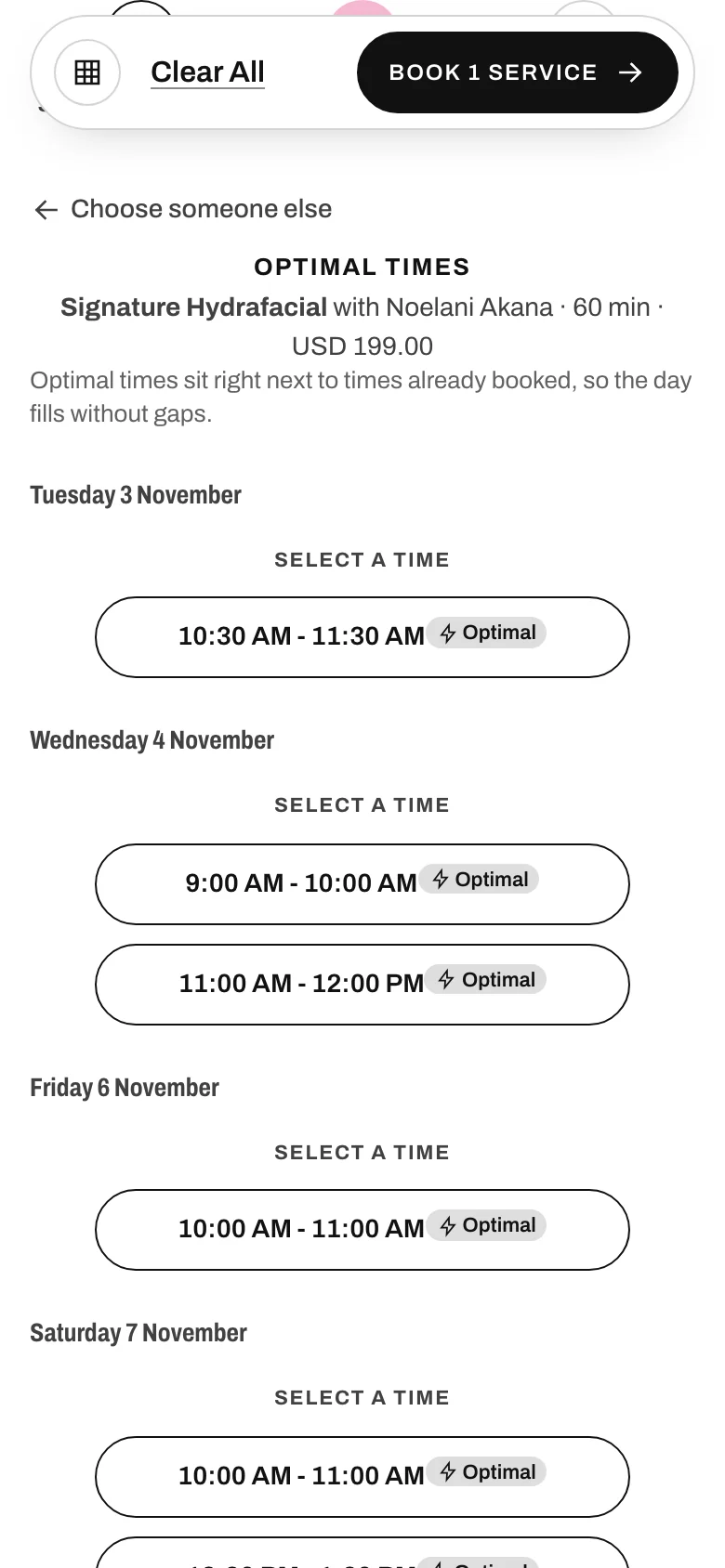
Precision Scheduling
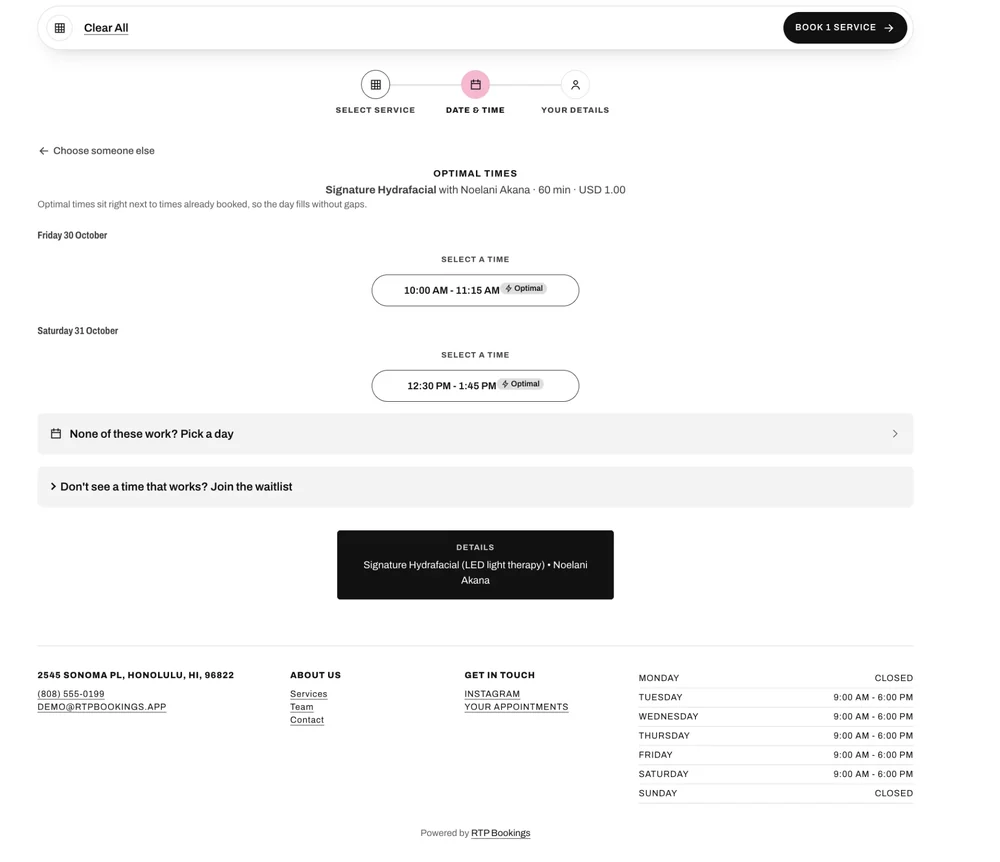
Optimal times come first: slots that sit right next to times already booked, so the day fills without gaps. Switch it on per business.
5
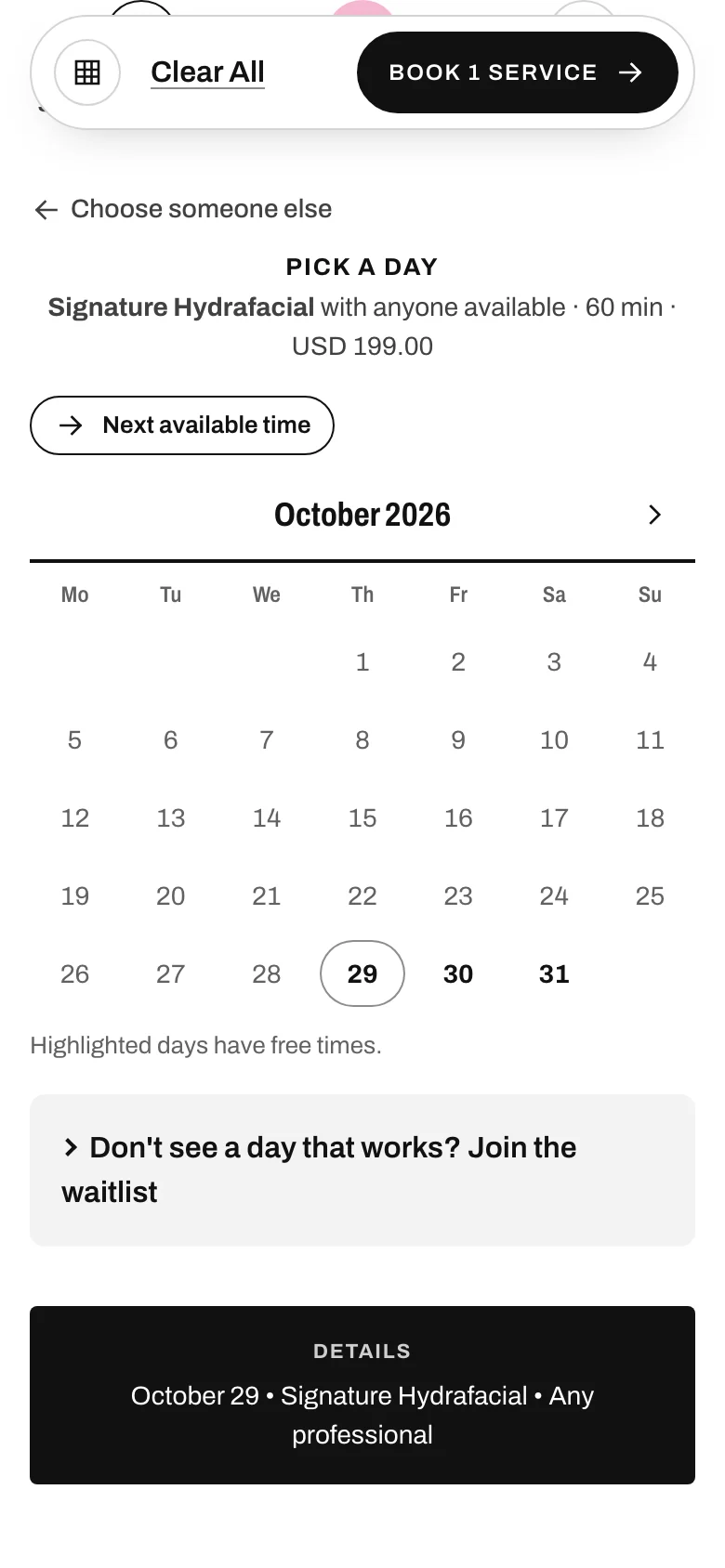
Pick a day
Only days with free times are offered. Nothing that works? Join the waitlist.
6
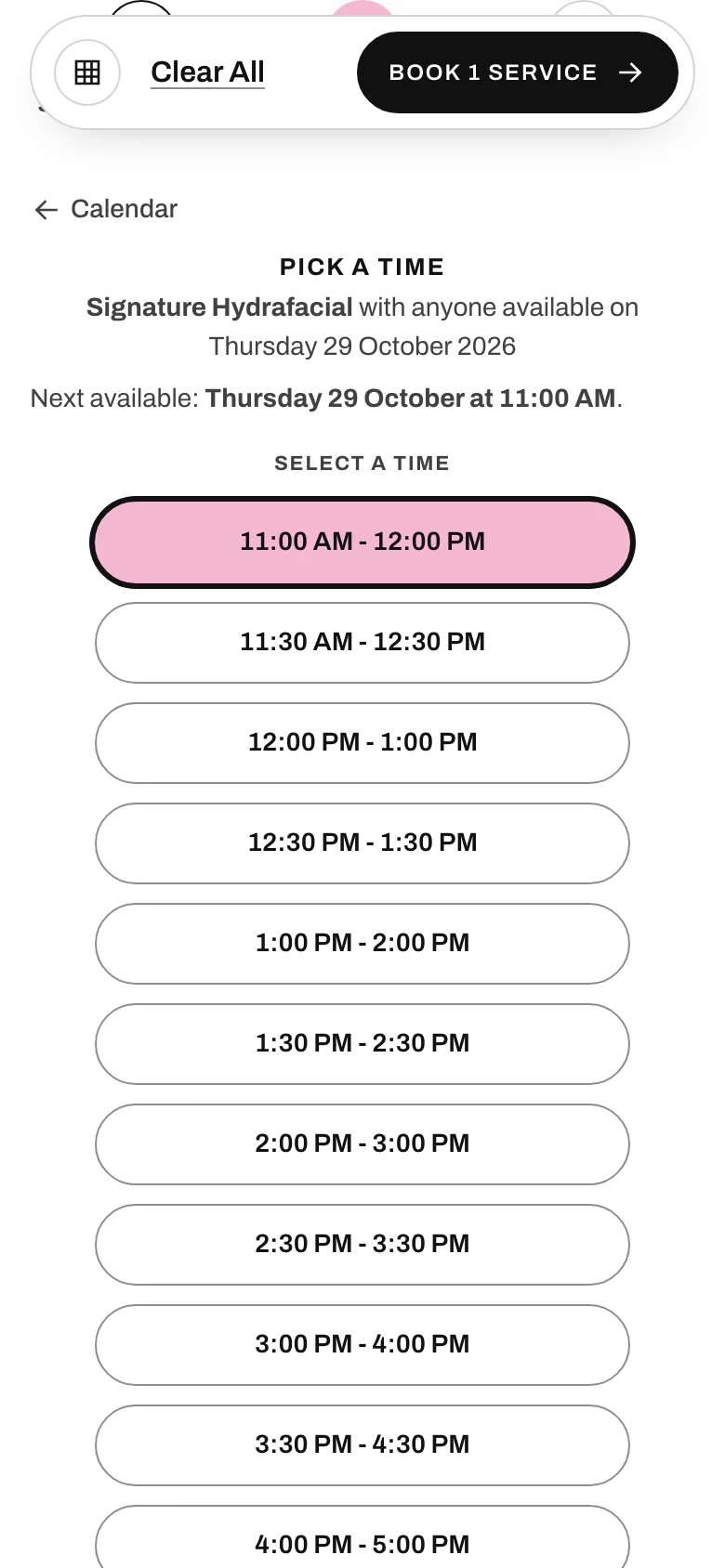
Pick a time
Real availability: the team's hours, their Google Calendars and existing bookings, minus buffers.
7
Details, then payment
Name, email, a note, a promo code or a tip, then Stripe. The slot is held while they pay.
rtpbookings.app/embed/harbor
ServiceAdd-onsWhoOptimal timesDayTimeDetails
Screens from the Harbor Beauty Studio demo business, captured from the live page. Prices and people are fictional.
The iPhone appOn the App Store
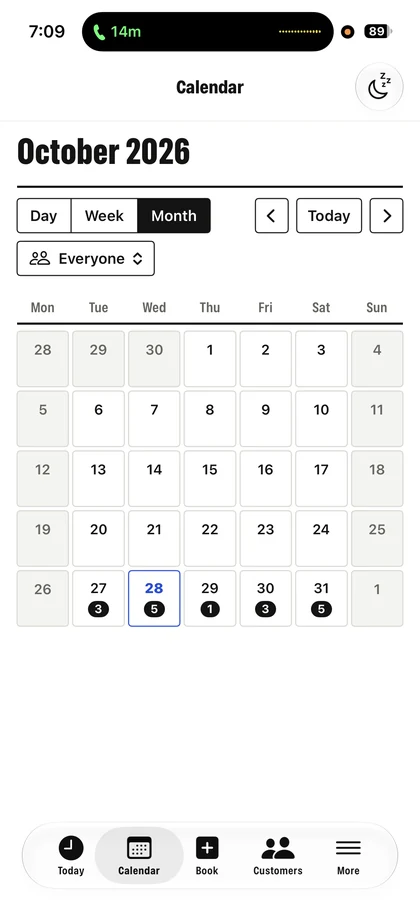
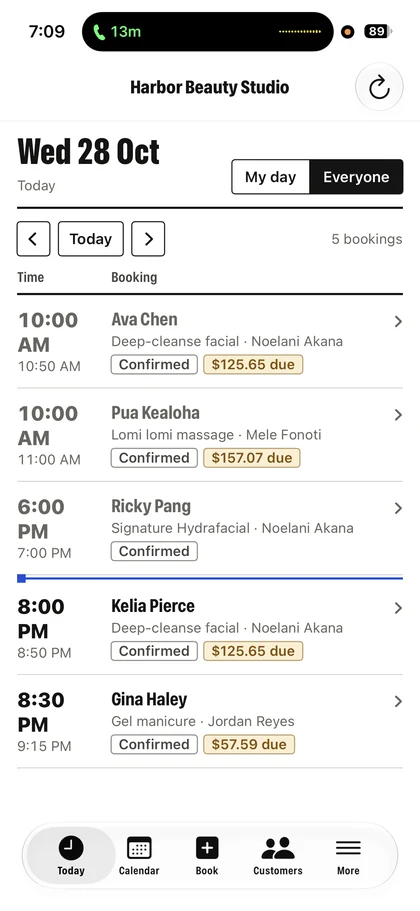
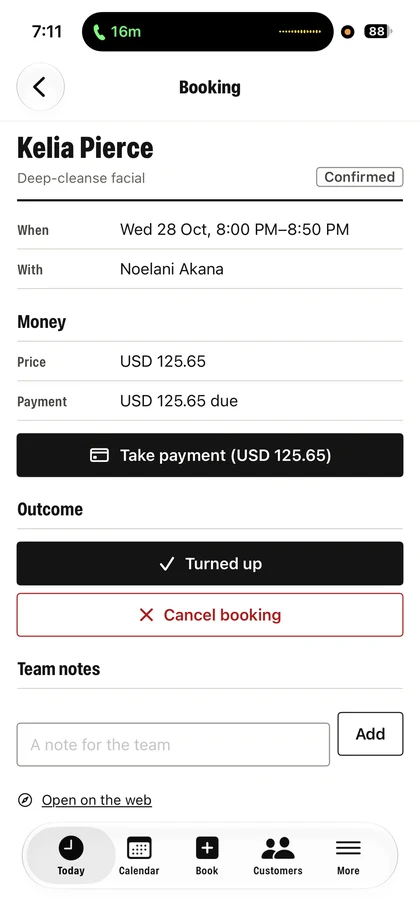
RTP Bookings for iPhone is a separate app from the App Store, not the website on a phone. Same account, same bookings: everyone on the team signs in with their web login and runs the day from here.
See every appointment, who it’s with, and what’s due — at a glance, all day.
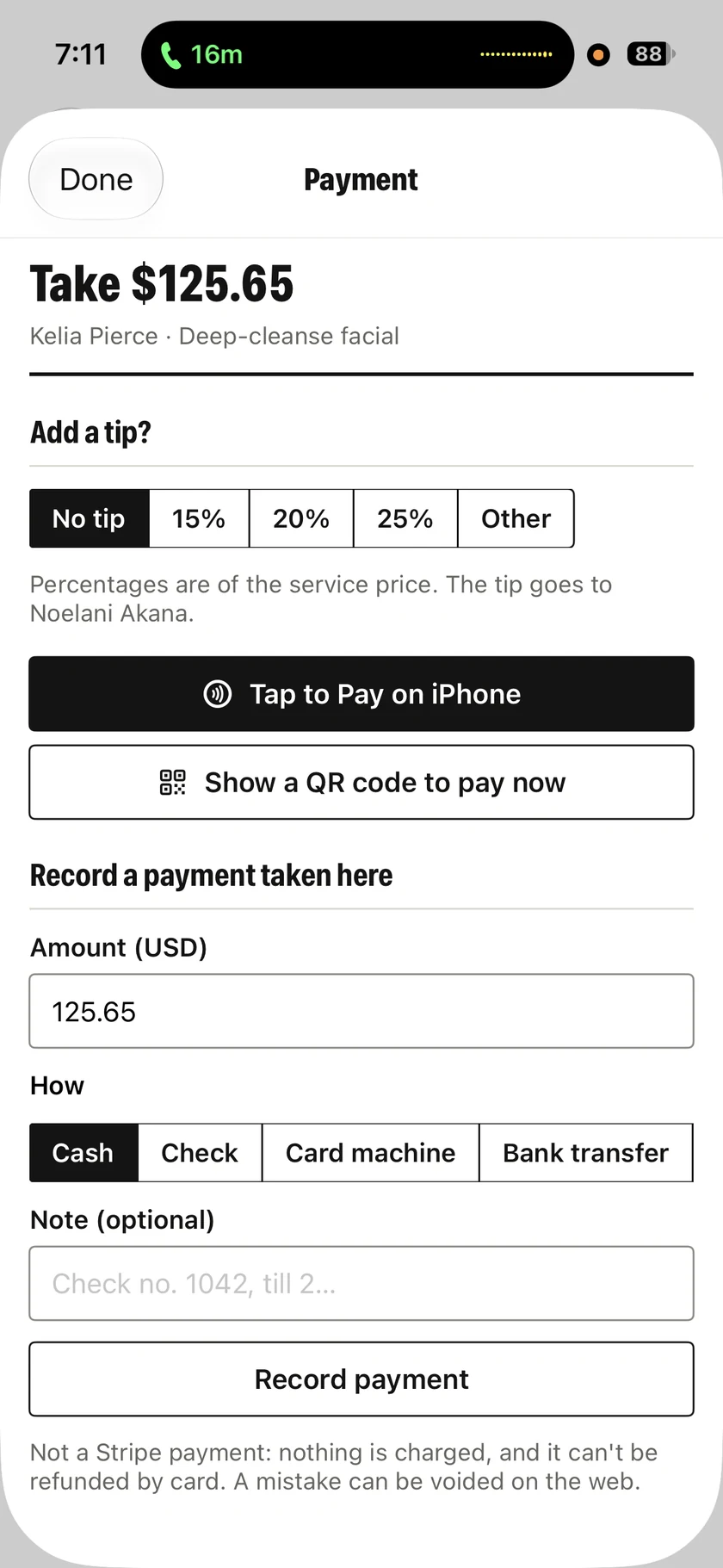
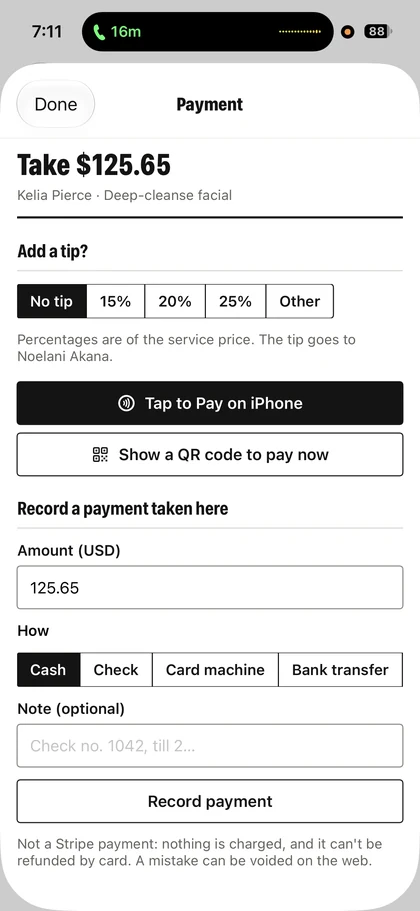
Open any booking to confirm it, make changes, or take payment — cash, the card on file or a pay link, with a receipt by email.
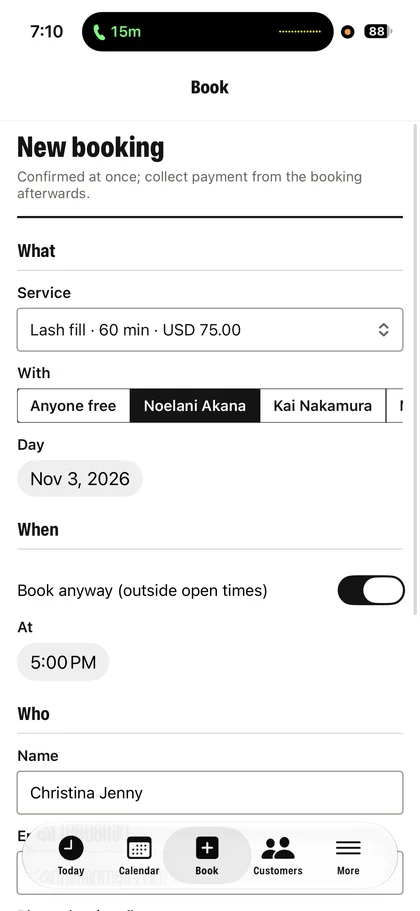
Book a walk-in or a phone call with the service, person and time that fit — even outside open hours.
Collect payment with Tap to Pay on iPhone: contactless cards, Apple Pay and wallets. No reader, no hardware. On the Business plan.
Every booking. One glance.
Your day. Sorted.
Everything about a booking. One card.
Booked in seconds.
Paid on the spot.
Easy payments
From booking to payment, without the extra steps.
Customers pay when they book, a deposit or the full amount, through Stripe. Whatever is left is settled in person with Tap to Pay on iPhone, the card on file, a pay link or QR code, cash, check, card machine or bank transfer, with a receipt by email. Google Calendar keeps the day honest while they pay. Two connections, made once on the partner's own page.
Payments
Stripe
A deposit or the full price at booking, tips and taxes included. Payouts go to your bank through Stripe, and the balance is taken on the iPhone with Tap to Pay or the card on file.
You connect on Stripe's own page and come straight back.
RTP Bookings
Availability
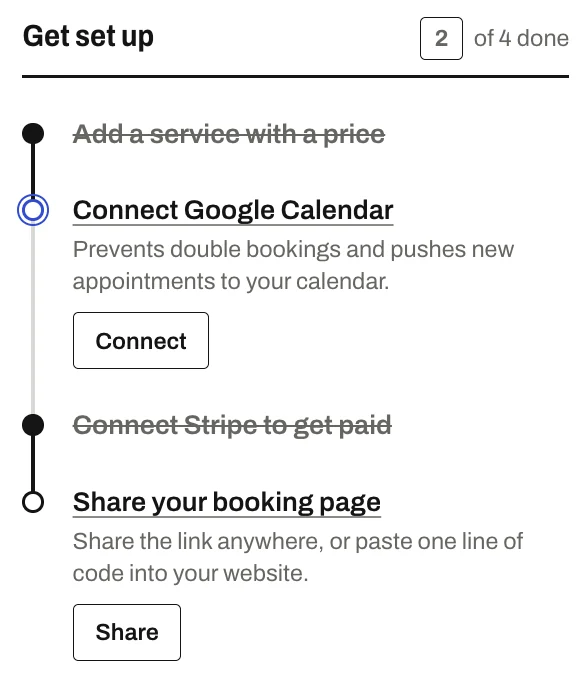
Google Calendar
Busy times on the calendar block bookings. New bookings land on it the moment they are made, and changes are picked up within seconds.
Each person on the team authorises their own Google account.
The Integrations page before either is connected. Connecting opens Google's or Stripe's own consent page; nothing is linked without it.On a team, every person connects their own calendar from the People page.
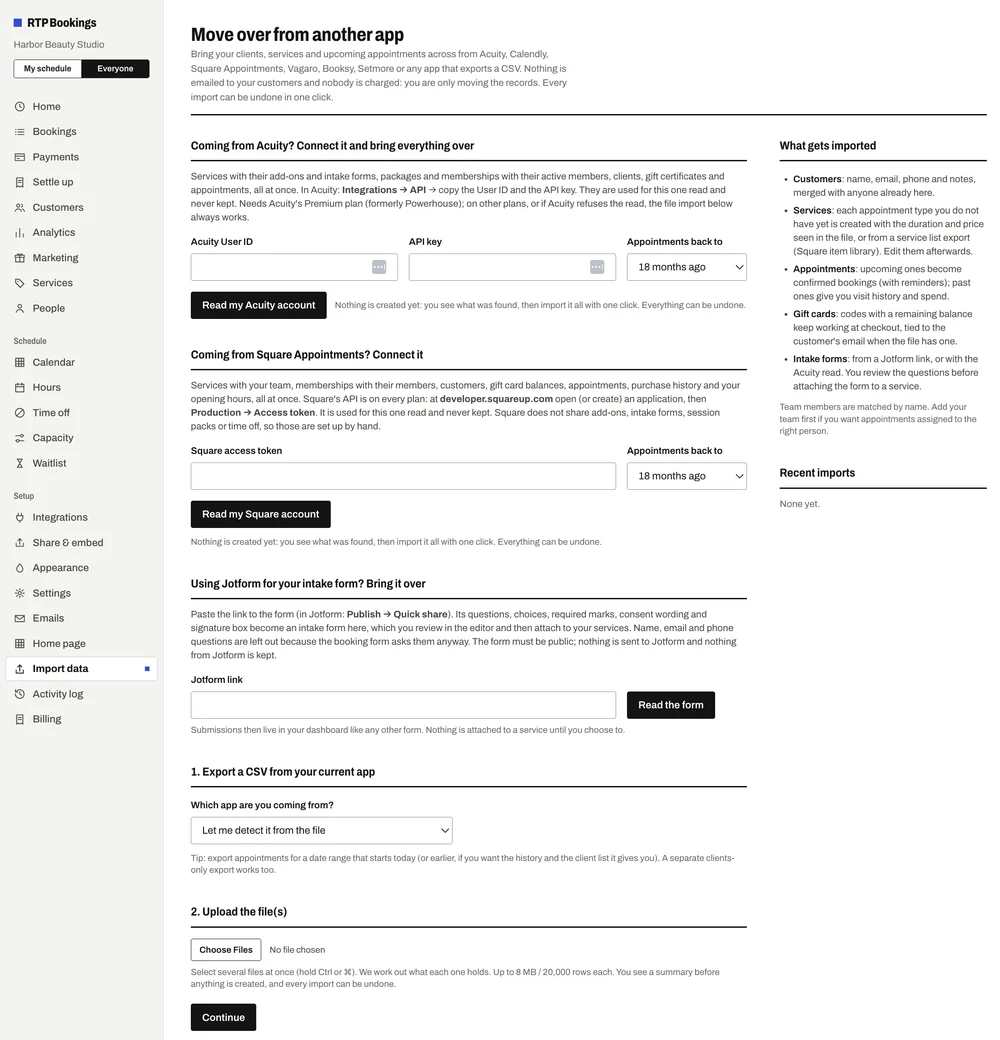
Switching made easier
Love your clients. Not your booking software? Switch.
Your clients, services and upcoming appointments come with you. Acuity and Square Appointments connect directly and we read the account. From Calendly, Vagaro, Booksy, Setmore or anything that exports a CSV, it is export, upload, confirm the column mapping, review what was found, import. Nothing is created until you say so, and every import can be undone in one click.
Acuity SchedulingConnect your accountServices with add-ons and intake forms, packages and memberships, clients, gift certificates, appointments
Square AppointmentsConnect your accountTeam, services, customers, bookings, gift cards, memberships, opening hours
CalendlyUpload your exportClients and appointments from the CSV
VagaroUpload your exportClients, services and appointments from the CSV
BooksyUpload your exportClients, services and appointments from the CSV
SetmoreUpload your exportClients, services and appointments from the CSV
Any other appCSV, guidedWe recognise the columns and you confirm the mapping
Nothing is emailed to your customers and nobody is charged: you are only moving the records.
For teams
One booking page for the whole team.
Two people or five, a salon, a clinic, a studio or a mobile crew: each person has their own calendar, hours, services and booking link. Customers pick a person or "anyone available", or the day is shared round-robin.
Team: $7.99 a month for up to 5 people. Need more? Business has no limit. See the plans
Starter is free for one person. Team and Business bill monthly; change or cancel any time. The only other cost is Stripe's card fee on payments you take.
Starter
Free for one person taking paid bookings online.
Free
A card on file, nothing charged on Starter
Appointments or classes: a booking page and website widget, synced with Google Calendar
Online payments and deposits with Stripe
Confirmation and reminder emails; customers cancel or reschedule themselves
Intake forms, cancellation and no-show policies
Customer profiles with notes, coupons and a waitlist
Taxes, tips and terms at checkout; tracked links and QR codes
0extra fees per booking. Your plan covers everything but Stripe's card fee.
5people on the Team plan for one price. No per-seat fee, no setup fee. Business has no limit.
1click undoes an import. Nothing is emailed to your customers and nobody is charged when you move over.
30days to decide. If a paid plan has not earned its keep, your money back.
Do my customers need an account?
No. They pick a time, enter their name and email, and pay. They get a link to cancel or move the booking themselves.
Are there extra fees per booking?
Only Stripe's standard card processing fee on payments you take. Your monthly plan covers everything else.
What if it is not for me?
Starter is free, so there is nothing to lose. On Team or Business, if it has not earned its keep in your first 30 days, write to us and we refund the month.
How fast is support?
Email support@rtpbookings.app and you hear back within 6 hours, or that month is free. On Business, a new feature you ask for is scoped within 6 hours too, or the month is free.
Can I bring my existing bookings and clients?
Yes. Connect Acuity or Square Appointments and we read the account; from Calendly, Vagaro, Booksy, Setmore or any app that exports a CSV, upload the file. You see what was found before anything is created, and every import can be undone.
Does my team need separate logins?
Each person signs in with their own login and sees only their own day; the owner sees everyone. Everyone gets their own hours, services, booking link and Google Calendar.
Can I cancel?
Yes, any time from your billing page. You keep access until the end of the period you have paid for.